A good booking confirmation email confirms the booking clearly, states the booking reference and core facts in the first few lines, gives one obvious next step, and lands automatically seconds after the customer books. For anything time-sensitive, add an SMS or WhatsApp reminder alongside it. Everything else—the design, the automation cadence, the templates—exists to make that one job work harder.
TL;DR:
- Confirmation emails must include booking reference, date, time, location, payment details, and cancellation policies to prevent support inquiries.
- Use clear, specific subject lines with the booking reference and ensure the booking ID appears in both the subject and first line of the email.
- Automate immediate, multi-touch reminder sequences, especially for high-risk bookings, using SMS or WhatsApp to reduce no-shows and ensure timely attendance.
- Design mobile-friendly templates with priority information first, minimal images, and accessible content to improve open rates and prevent emails from landing in spam.
- Run thorough pre-launch checks for all links, personalisation tokens, and reply capabilities to avoid common issues like broken links, vague policies, or missing booking IDs.
Table of Contents
- What core details belong in a booking confirmation email?
- How do you write subject lines and CTAs that get opened?
- Five ready-to-copy booking confirmation templates
- How do you automate reminders to cut no-shows?
- What design and deliverability rules keep confirmations landing?
- What mistakes should you check for before you launch?
- Served's take on confirmations that actually match how venues run
- Get your confirmation emails working without the admin
- Sources
- FAQ
What core details belong in a booking confirmation email?
Every confirmation email needs to answer six questions before the customer even opens it fully: is this booked, what did I book, when, where, what did I pay, and what happens if plans change. Skip one and you generate a support ticket. Checkfront's guidance on confirmation emails lists dates, deposit status, and location as baseline fields, and that baseline holds true whether you run a hotel, a bistro, or a walking tour.
Here's the full checklist, in the order it should appear on the page:
- Confirmation statement and booking reference. Open with a plain sentence: "Your booking is confirmed" plus the reference number. A clear line here is what cuts down "did my booking go through?" emails to your inbox.
- Date, time, time zone, and headcount. State the duration too, if the booking is time-boxed (a 90-minute tasting, a two-hour appointment slot).
- Location with a map link and the exact address. Add a phone number and a reply-to address the customer can actually use.
- Payment summary. Amount paid, outstanding balance, deposit terms, and a billing reference if a card was charged.
- Cancellation and modification policy. State the deadline in plain language ("free cancellation until 6pm the day before") and link to the full policy rather than burying it in small print.
- Manage booking link, calendar link, and digital ticket or QR code where relevant.
- Language and accessibility notes, particularly if the booking came through a multilingual site.
Smart Order's hotel booking guidance makes a similar point about check-in instructions: put practical, day-of information where the guest can find it fast, not three paragraphs down. That's also where a lot of businesses lose the plot. They write a beautifully branded confirmation with a warm welcome message, and the actual booking reference is somewhere in paragraph four. Put it in the first line. Customers scan; they don't read.
The cancellation policy deserves particular care. A vague line like "cancellations may incur a fee" invites a dispute.
How do you write subject lines and CTAs that get opened?
The subject line has one job: prove this is a real, useful email worth opening now, not later. The formula that works across industries is simple: brand name, booking intent, and the reference number, kept under 70 characters so it doesn't get truncated on a phone screen. Skip cute wording that obscures what the email actually is. "Something great is coming!" gets ignored or deleted. "Booking confirmed: The Anchor, Table for 4, Ref #4821" gets opened, every time.
A few examples by tone:
- Formal/business: "Your Reservation Is Confirmed — Ref #7734"
- Casual/hospitality: "You're booked in! See you Saturday 🎉 (#4821)"
- Luxury/high-end: "Confirmed: Your Stay at [Venue], Ref #9902"
- Group bookings: "Group Booking Confirmed for 12, Ref #3310"
The preheader, that snippet of text visible next to the subject line in most inboxes, is prime real estate that gets wasted constantly. Use it to preview the manage-booking link, the map, or the contact number, rather than letting the email client pull in a random "view this email in your browser" fallback line.
CTA wording should match the actual next action, not a generic button label. "Manage Booking" works when a customer might need to change details. "Check In Online" fits hotels and flights. "View Your Ticket" fits events. Whatever the wording, put the button above the fold and repeat it once more near the bottom for longer emails.
Pro Tip: Put the booking ID in the subject line and again in the first sentence of the body. When a customer searches their inbox for "Ref 4821" six weeks later, you want it to surface instantly, not force them to dig through your marketing newsletter to find it.
Five ready-to-copy booking confirmation templates
Pipedrive's roundup of confirmation email templates makes the case for working from templates rather than starting from scratch. It cuts drafting time and keeps every field consistent across bookings. Below are five short templates covering the most common venue types, each with a note on what to personalise before sending.
1. Hotel booking
Subject: Your Stay Is Confirmed — Ref #[BookingID]
Hi [GuestName], your reservation at [HotelName] is confirmed. Check in: [Date] from [Time]. Check out: [Date] by [Time]. Room type: [RoomType]. Total paid: [Amount]. Balance due at check in: [Balance]. [Manage Booking Button] [Get Directions Button]
Edit the check-in window and balance-due line for every property; these vary by rate plan and are the two fields guests query most. Use HTML here, branding and an upsell nudge (room upgrade, late checkout) genuinely earn their place in a hotel confirmation.
2. Restaurant booking
Subject: Table Confirmed at [RestaurantName] — Ref #[BookingID]
You're booked for [PartySize] on [Date] at [Time]. Ref #[BookingID]. Running late or need to cancel? [Manage Booking Link]. We hold tables for 15 minutes past booking time.
Adjust the grace-period line to match your actual hold policy; this single sentence prevents most "we gave your table away" disputes. Plain text or lightweight HTML both work fine for restaurants, speed of delivery matters more than styling here.
3. Appointment booking
Subject: Appointment Confirmed — [ServiceName], Ref #[BookingID]
Your appointment with [Provider] is booked for [Date] at [LocalTime]. Location: [Address]. Please arrive 5 minutes early. Need to reschedule? [Manage Booking Link]
Always state the local time zone explicitly if you serve clients across regions; this single field prevents most missed appointments in service businesses. Plain text tends to land better in inboxes for one-to-one appointment reminders.
4. Event ticket
Subject: You're In! Ticket Confirmed — Ref #[BookingID]
Your ticket for [EventName] on [Date] is confirmed. [QR Code / Ticket Attachment]. Doors open [Time]. [View Ticket Button]
Test the QR code attachment on at least three email clients before launch; a broken ticket image at the venue door is the single most common event-booking complaint. HTML with an embedded or attached ticket image is standard here.
5. Tour or activity booking
Subject: Tour Confirmed: [TourName] — Ref #[BookingID]
You're booked for [TourName] on [Date] at [Time]. Meeting point: [Location + Map Link]. What to bring: [Items]. [Manage Booking Link]
Personalise the "what to bring" line by season and tour type; this is the detail that most reduces day-of confusion for outdoor activities. HTML with a map embed works best given the location-finding problem tours face.
Personalisation tokens like guest name, booking ID, and local time are safe to automate everywhere. Be cautious with anything pulled from a CRM field that might be blank or mistyped, an empty "[GuestName]" tag looks worse than no personalisation at all, so always test with a dummy booking first.
How do you automate reminders to cut no-shows?
Automation only works if the first email fires the instant the booking is made, not an hour later, not the next morning. Mews's research on hotel confirmation emails recommends sending the confirmation instantly and treating it as the first touch in a sequence, not a one-off message. Configure the trigger on the booking event itself, never on a batch job that runs once a day.
From there, a sensible reminder cadence depends on how risky the booking is. Low-risk bookings, a table for two next Friday, need less hand-holding than high-risk ones, a 12-person group booking three weeks out, or a service appointment that's easy to forget.
- Low-risk bookings: confirmation at time of booking, then one reminder 24 hours before.
- Higher-risk or no-show-prone bookings: confirmation, a check-in touch around a week out, then a reminder 24 to 48 hours before, and a final nudge the morning of.
A four-touch pre-arrival workflow like this, documented in Jogi AI's guide to hospitality automation, is standard in hospitality and adapts easily to lower-frequency businesses by simply spacing the touches further apart.
Adding SMS or WhatsApp for the day-of reminder is worth the extra channel because open rates on text messages beat email by a wide margin for time-sensitive notices, just make sure you've captured explicit consent for text messages at the point of booking, not assumed it. The same guide notes that pairing bookings with messaging channels and calendar invites measurably reduces no-shows.
Pro Tip: Test the "save to calendar" button before you assume it's working. It's a small feature, but it closes one of the most common attendance gaps: customers who fully intended to show up and simply forgot the date because it never made it onto their calendar.
What design and deliverability rules keep confirmations landing?
Most booking confirmations are opened on a phone screen, so design for a single column, priority information first, before you think about branding. The booking reference, date, and manage-booking button should all be visible without scrolling on a small screen.
- Keep images light. A heavy logo file or an unoptimised header image can push you into spam-filter territory and slows load time on mobile connections.
- Add alt text to every image, both for accessibility and so the email still makes sense if images are blocked, which happens by default in many inboxes.
- Never send from a no-reply address. Customers need somewhere to reply when something's unclear, and a no-reply sender damages trust before they've even read the content.
- Set up DKIM and SPF authentication properly. Zoho's ZeptoMail guide notes that using a proper transactional email provider, rather than routing confirmations through a general marketing tool, meaningfully improves deliverability and takes the infrastructure burden off your team.
- Use readable font sizes (16px minimum for body text) and sufficient colour contrast so the email is usable for customers with visual impairments.
- Label every link clearly. "Click here" tells a screen reader nothing; "Manage your booking" does.
What mistakes should you check for before you launch?
The same handful of errors show up across almost every broken confirmation flow: no booking ID anywhere in the email, a cancellation policy that's vague or missing, a no-reply sender address, links that 404, and personalisation tokens that were never tested with a blank or malformed field.
Run this checklist before any new template goes live:
- Preview the email on a phone screen, not just your desktop inbox.
- Send a test booking with a deliberately blank name field to catch broken tokens.
- Click every link, including the calendar and manage-booking buttons.
- Confirm the sender address can receive and route replies.
- Check the subject line and first line both display the booking reference.
Served's take on confirmations that actually match how venues run
Served builds confirmations around how a venue actually operates, not how a generic template assumes it operates. Commission-free booking, real-time menu updates, and the Growth Scan all feed into the same idea: give guests certainty without giving venues more admin. Automated confirmations and reminder sequences through Served exist to remove the guesswork guests feel between booking and arrival, and the manual chasing venues used to do to fill that gap.
— Ignacy Jurkowski
Get your confirmation emails working without the admin
If you run a restaurant, bar, or café, chasing no-shows and manually re-sending booking details eats hours you don't have. Served handles the parts of this article that are hardest to build yourself: instant, automated booking confirmations the moment a table is reserved, reminder sequences that reduce no-shows without you writing a single follow-up, and a Growth Scan that shows exactly where your booking flow is leaking customers before they ever hit confirm.
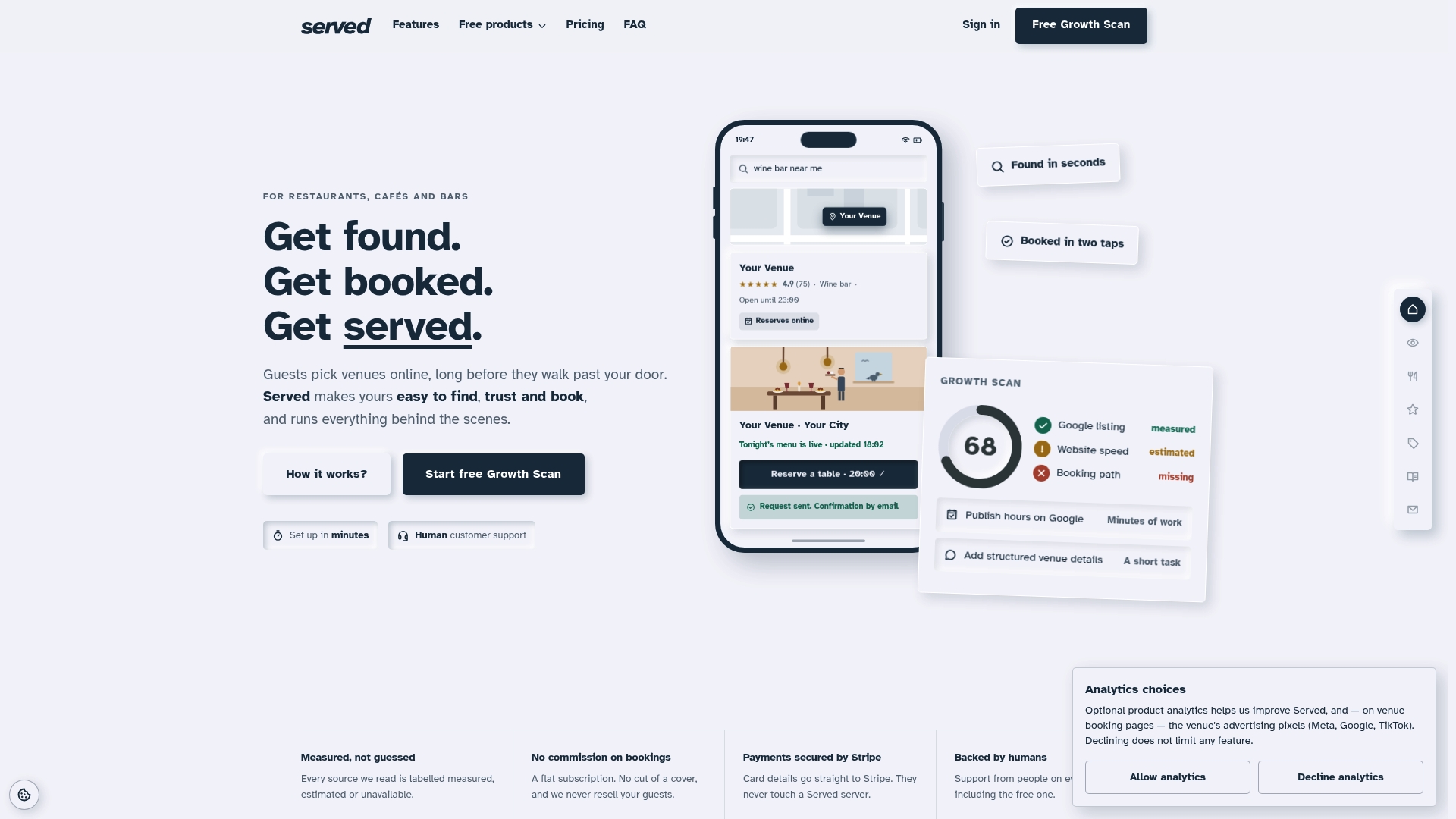
Because the platform runs on a flat subscription with no commission on covers, every booking your automated confirmations help secure stays yours, no per-reservation fee eating into it. If you're currently piecing confirmations together across spreadsheets and a booking widget that doesn't talk to your calendar, it's worth seeing what switching to Served actually involves. Check your current setup against the Growth Scan and see where the gaps are.
Sources
- How to create the best hotel booking confirmation email for guests
- 23 confirmation email templates and examples
- How to Write Impactful Booking Confirmation Emails
- Booking confirmation email template (ZeptoMail)
FAQ
Does Booking.com Send Confirmation Emails?
Yes. Booking.com and other major booking platforms automatically send a confirmation once a reservation is completed, typically including the booking reference, dates, and property contact details, and most platforms let the business customise elements of that message.
Why Am I Getting Order Confirmation Emails I Didn't Expect?
You'll usually get one automatically the moment any booking, order, or reservation is completed online. If it looks unfamiliar, check whether someone else booked using your email address, or whether a booking was made and later needs cancelling.
What Does a Booking Confirmation Email Look Like?
A well-built one opens with a clear confirmation statement and booking reference, followed by the date, time, location, payment summary, and a manage-booking or calendar link, all readable within the first screen on a phone.
How Do I Reply to a Booking Confirmation Email?
Reply directly to the sender's address if you need to change details, ask a question, or flag an error, provided the email wasn't sent from a no-reply address. If it was, use the phone number or manage-booking link included in the email instead.