Yes, you can keep your venue's menu current on Facebook and Instagram. Upload menu pages directly to the Page's Menu tab, or, for continuous sync, publish one live menu URL and link it everywhere. Busy venues should choose the live link. You need admin or editor access to your Page to make any changes, and a platform like Served can automate the whole process.
TL;DR:
- Updating menus manually suits seasonal changes but becomes impractical for weekly updates and frequent specials.
- Linking a single live URL from your website or menu platform provides real-time updates across all channels without extra work.
- Using a menu-management platform like Served automates updates, offers support, and reduces version confusion for venues with frequent menu changes.
- Fixing common Facebook menu issues involves verifying the correct page template and roles, compressing images, and clearing caches when changes don't display.
- Consistently using one canonical menu URL across all platforms and QR codes helps maintain accuracy and guest trust over multiple channels.
Table of Contents
- How to sync menu to Facebook: adding or replacing your Page menu
- Manual uploads, a live link, or a menu-management platform?
- Linking your menu and reservations on Instagram and Facebook
- Fixing the most common Facebook menu problems
- Menu best practices that build guest trust
- What actually works when you've managed this for years
- Served: one menu, updated everywhere, without the manual work
- Sources
- FAQ
How to sync menu to Facebook: adding or replacing your Page menu
Facebook builds menu support into a specific Page template, so the first job is making sure your Page is set up correctly.
- Go to Page Settings and check your Page template. If it isn't already set to Restaurants and cafes, switch it. This template unlocks the Menu tab that other formats hide, so Roihacks is worth checking if the tab still doesn't show.
- Open the Menu tab from your Page and select Get started. Facebook's assistant walks you through the upload.
- Choose between uploading images of your menu or building it section by section within the tool. Recent updates favour images over PDFs, largely because PDFs render poorly on phone screens.
- Add section labels (starters, mains, drinks) and enter prices next to each item, rather than leaving them baked into an image caption.
- Preview the result on both desktop and mobile before you publish. This step catches most of the errors that annoy customers later.
- Publish, then open the Page yourself on a phone to confirm everything displays properly.
A few practical points make the difference between a menu that looks professional and one that looks rushed:
- Export images at a reasonable resolution, but compress the file. Use file sizes optimized for fast loading to ensure menus display quickly on all devices.
- Use a restaurant category for the Page itself, not a generic "local business" label, since Synup's guide to adding a menu on Facebook notes this affects whether the Menu tab appears at all.
- Once your menu is live, Facebook can generate a QR code for it. Find this in the Page's menu settings and print it for tables or your front window.
Pro Tip: Preview your menu on your own phone before you tell staff it's live. Desktop previews hide cropping issues that only show up on a small screen.
Manual uploads, a live link, or a menu-management platform?
Three workflows exist for keeping a menu current, and each suits a different kind of venue.
Manual edits work fine for a venue that changes its menu once a season. You upload new images through the Menu tab whenever prices or dishes shift. The cost isn't money, it's staff time. Someone has to remember to do it, format new images, and repeat the whole process every time a dish changes. For a venue that tweaks specials weekly, that adds up fast.

A live menu URL solves the repetition problem. You publish one canonical digital menu, either on your own website or through a dedicated menu tool, and link that single URL from your Facebook Page, your Instagram bio, and any printed QR codes. Update the source page once, and every channel reflects the change immediately. This is the setup Speiso recommends for venues that update prices or availability often, and it's the approach we'd point most operators toward.
A menu-management platform goes a step further by pushing updates automatically and removing manual syncing altogether. When comparing options, check for:
- Real-time push to your listings, not scheduled batch updates
- Human support you can actually reach when something breaks
- Clear resources for migrating your existing menu data during the switch
For venues juggling seasonal dishes, daily specials, or multiple locations, this third route removes the single biggest source of "which version is live?" confusion.
Linking your menu and reservations on Instagram and Facebook
Instagram doesn't have a dedicated menu tab, so the bio link and action buttons do the heavy lifting; for more on linking menus and reservations, see Explaining Digital Reservations: What Every Traveler Should Know.
- Open your Instagram business profile and edit your bio. Paste your canonical menu URL directly into the website field, or use a link-in-bio tool if you're pointing to several destinations.
- Add an Action button by going to Edit Profile, then Contact Options, and selecting Book Now. Connect it to your reservation system so guests can act the moment they see your menu.
- On Facebook, go to your Page, select + Add a button, choose Book Now, then Connect another tool to link your existing reservation platform. Confirm your Instagram account is linked through Business Manager, since a broken connection here is a common reason buttons quietly stop working, as Lightspeed's guide to selling on Instagram and Facebook explains.
- Use Stories, feed posts, and printed QR codes to surface the menu link whenever you post a new dish or seasonal special. A Story highlight titled "Menu" keeps it permanently accessible without cluttering your bio.
Fixing the most common Facebook menu problems
Most menu problems trace back to one of four causes, and none of them need a support ticket.
- Missing Menu tab: confirm your page role is admin or editor, and check the Page template is set to Restaurants and cafes rather than a generic business type.
- Instagram menu link not working: reconnect Instagram to your Facebook Page through Business Manager, since a broken link between the two accounts is the usual culprit.
- Blurry or pixelated menu images: compress files before upload and use a legible sans-serif font at a minimum of 24pt for body text, so prices stay readable on a five-inch screen.
- Changes not appearing: clear your browser cache, reload the Page in an incognito window, and reupload if the old version persists. Facebook's cache is often the delay, not your edit.
Recommended image resolution sits around 1080 pixels wide, which balances clarity against file size on most connections.
Menu best practices that build guest trust
A menu's job is to answer questions before a customer has to ask a member of staff. Clear formatting does most of that work.
- Use plain section headings ("Starters", "Mains", "Desserts") rather than decorative emojis stacked next to dish names, which slow down scanning on mobile.
- Add a small "last updated" date near the top if your prices change often. It reassures guests they're not looking at last year's figures.
- Include allergen flags or a short note where legally required, and keep descriptions to one clear sentence rather than a paragraph of adjectives.
- Stick to a single canonical menu URL across every channel. A digital menu with one master link avoids the version confusion that happens when a printed menu, a Facebook upload, and a website PDF all say something slightly different.
Reused QR codes pointing to that one URL mean a table sticker, a window decal, and an Instagram bio link never fall out of sync with each other.
What actually works when you've managed this for years
Every venue I've spoken with about this eventually lands on the same lesson: the manual upload route works right up until the menu changes twice in one week, at which point it quietly starts failing. Keep this checklist handy for a shift handover or operations folder:
- Confirm page role (admin or editor)
- Apply the Restaurants and cafes template
- Upload or link your canonical menu
- Test the result on mobile
- Add the link to your Instagram bio and generate a QR code
- Set a fixed schedule for reviewing and updating prices
When updates start happening weekly rather than seasonally, it's worth considering a platform built for this, such as Served.
— Ignacy Jurkowski
Served: one menu, updated everywhere, without the manual work
Served exists for exactly the moment described above, when manual uploads stop keeping pace with how often your menu actually changes. It gives you real-time menu updates from a single source, so a price change or a new special updates everywhere it needs to, rather than requiring a separate edit on Facebook, Instagram, and your website each time.
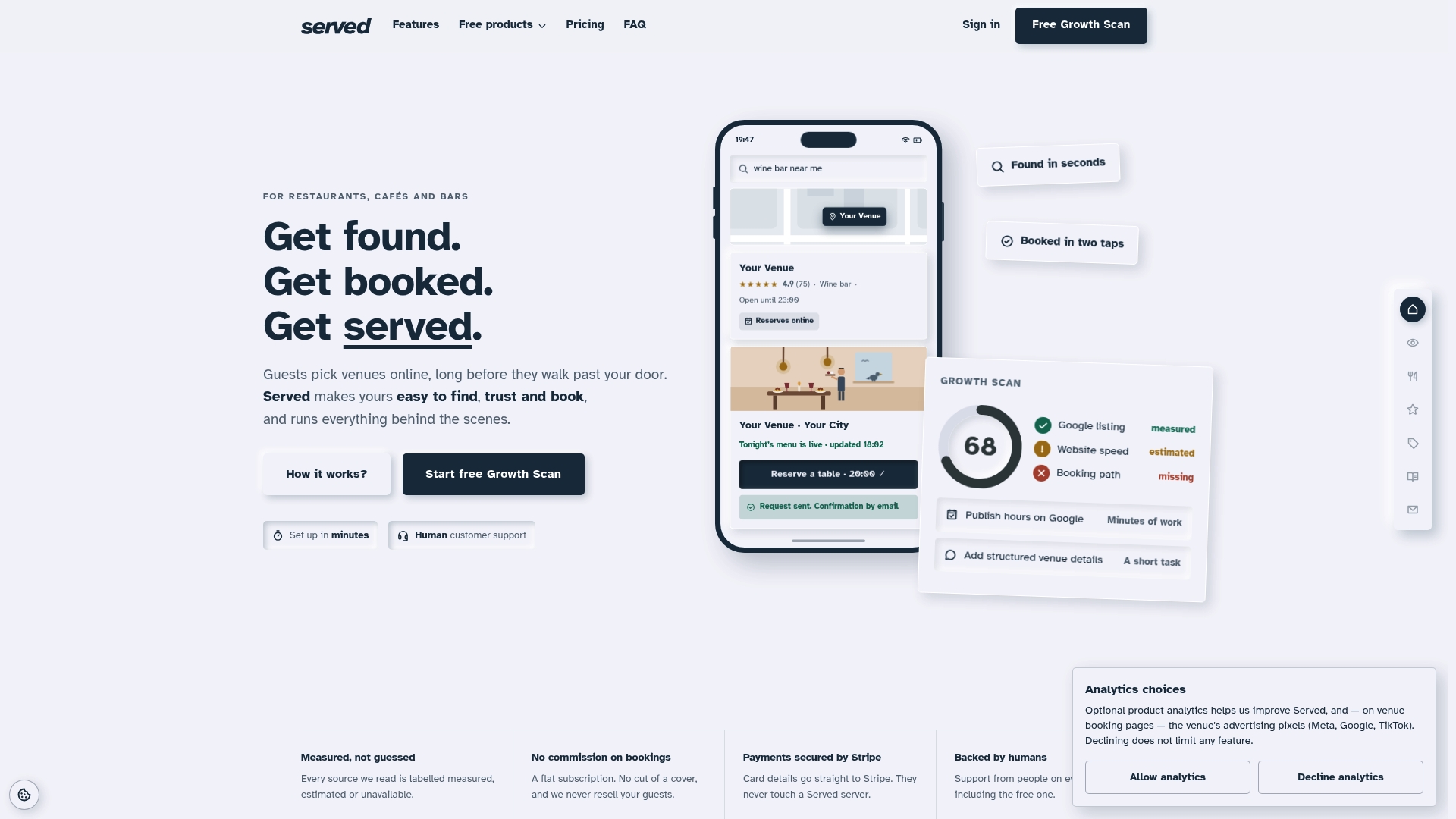
Served also includes human customer support when something doesn't behave as expected, plus a free Growth Scan that flags visibility gaps across your listings before they cost you covers. The platform runs on a booking model with a flat subscription, avoiding per-reservation fees. If you're switching from another booking or menu tool, Served provides dedicated onboarding and migration resources for venues moving over to make the transition simple rather than disruptive.
Run a free Growth Scan today to see exactly where your menu and booking visibility need attention, or visit Served for restaurants to see how the switch works for a venue like yours.
Sources
- Restaurants & Cafés auf Facebook mit Speisekartenfunktion (Update) - AllSocial der Blog
- So fügen Sie eine Speisekarte auf Facebook hinzu | Synup
- Facebook Page Menus (How To Add & Change Them?) in 2026
FAQ
How do I sync my menu to Facebook automatically?
Facebook itself doesn't automatically pull menu updates from your website. For genuine automatic sync, publish one canonical menu URL and link it everywhere, or use a platform like Served that pushes real-time menu updates across your listings from a single source.
Do I need admin access to add a menu to my Facebook Page?
Yes. You need an admin or editor page role to add, edit, or replace a menu on a Facebook Page. Anyone with only a "viewer" or lower-level role won't see the Menu tab's editing options.
Why isn't my Menu tab showing on Facebook?
The most common cause is an incorrect Page template. Switch to the Restaurants and cafes template in Page Settings, which reveals the Menu tab that other templates hide, as roihacks.com explains.
Can I use a PDF for my Facebook menu?
You can, but images generally display better on mobile, since PDFs often render poorly on smaller screens. If you do use a PDF, keep text large and test it on a phone before publishing.
How much does Served cost?
Served's paid plan, Visibility Brain, is listed at €69 per month or €660 per year on the Served pricing page. A free tier and other plan details are available directly on the Served site.