Edit the item in your menu tool or website, hit publish, and force a sync if you run a POS so every channel matches. Change the title, description, price and dietary flags in one place. No menu tool yet? Update your website page or a temporary QR link first, then tidy up later. Test it on your own phone before service.
TL;DR:
- Save the current menu and note its go live time before editing; then update prices, availability, and allergen flags together.
- A basic website or QR page requires a separate POS price update, while POS integration pushes price and availability across channels.
- For seasonal offers, build a hidden category in advance and schedule its release; separate listings make it easier to switch them off cleanly.
- If digital menus fail, keep two or three printed or saved copies ready, and train staff to use them while technical problems are fixed.
Table of Contents
- What should you do when a dish or price changes mid-service?
- How do you update and publish a menu without errors?
- Which tools help you change a menu online fastest?
- How should you design a menu so updates actually sell?
- What goes wrong when you update a menu, and how do you fix it?
- Why does a current menu matter for visibility and bookings?
- Our take: fix the process before you buy more software
- How can Served help you keep your menu and visibility current?
- FAQ
- Sources
What should you do when a dish or price changes mid-service?
Keep this checklist close. It works for a sold-out special, a price correction or a swapped ingredient.
- Save the current menu content and note when the change should go live.
- Edit the item title, short description, price and dietary or allergen flags.
- Mark sold-out items as unavailable, or set a limited quantity.
- Publish, then open the live link or QR code on a phone to check it.
- Confirm your POS or menu-board sync, or refresh screens by hand.
- Tell front-of-house staff and write the change in the shift log.
Order matters here. Saving first gives you a rollback point. Testing on a phone helps you check how the menu appears to guests.
Pro Tip: Keep one person responsible for each live change during service. Overlapping edits can lead to a wrong price.
A change nobody tells the floor about is a change that fails. If a server promises a dish that has vanished from the menu, you lose goodwill, not just a sale. The shift log takes little time and can help avoid an awkward conversation.
How do you update and publish a menu without errors?
Treat every edit as a small project, even a tiny one. The process is simple: plan, prepare, update, review, publish, monitor. Menu management guidance frames it the same way, and it holds for a single dish or a full seasonal switch.
- Plan. Decide the scope: one item, a whole category or a seasonal switch. Pick a quiet go-live time and tell staff beforehand.
- Prepare. Gather photos, short descriptions, final prices, POS item codes and allergen details before you open the editor. Hunting for a missing allergen note halfway through an edit is how mistakes creep in.
- Update. Make the change in your menu tool or CMS. Use version notes or edit history if your system offers them, so you can see who changed what.
- Review. Preview the menu on different devices. Check that your POS shows the same priced that any menu board or third-party listing matches.
- Publish. Go live immediately or schedule it. Set the effective date, and replace any QR code or link if the address has changed.
- Monitor. Watch for wrong prices, missing images and guest comments. Be ready to roll back to the version you saved.
Some habits make this run smoothly across a busy week:
- Batch small edits into one session instead of touching the menu all day.
- Keep a single master copy of menu text, so descriptions never drift between channels.
- Name saved versions with a date, such as "spring menu, before price update".
- Check your Google listing and social pages after any big change. If you maintain a Facebook menu, our guide to keeping one URL and syncing your menu to Facebook shows how to avoid re-uploading files each time.
Seasonal switches deserve extra care. Build the new category in advance, keep it hidden, and publish it at a set time instead of improvising on the day. Limited-time offers can sit in their own category so you can switch them off cleanly when they end.
The goal is boring reliability. When the workflow is the same every time, anyone on your team can run it, and you stop depending on one person who "knows how the menu works".
Which tools help you change a menu online fastest?
There are four broad routes. Which one suits you depends on how often your menu changes and how many places it appears.
- Website page or CMS with a QR shortcut. Cheap and quick to edit. The catch is that it does not talk to your POS, so you update prices twice.
- Dedicated menu-management apps. Built for fast edits, mobile-friendly layouts and QR publishing. A good fit if you change dishes weekly.
- POS-integrated menu sync. Menu data starts in the POS and pushes outward, which makes price and availability the most reliable. Best for busy venues with frequent changes.
- Digital menu boards. Screens that follow your POS or a board service, so nothing needs reprinting.
The trade-offs come down to speed, reliability and extras. A simple page is fastest to start but easiest to get out of step. POS sync is the steadiest but needs setup. Ask any vendor whether the system handles multiple languages and scheduled seasonal switches, because retrofitting this is painful.
On the display side, menu board systems that sync with the POS show current prices, availability and bilingual menus without reprinting, which saves both time and printing costs. If you are weighing physical screens, standing LED displays are one hardware option worth pricing up.

Menu boards that sync with your POS update on screen without reprinting. For a venue that adjusts prices often, that removes a whole category of repeat work.
How should you design a menu so updates actually sell?
An update is a chance to sell better, not just to stay accurate. Every edit is a moment to ask whether the page is easier to read than it was yesterday.
- Keep item names short and descriptive. Mention key ingredients so guests with dietary needs can decide quickly.
- Make specials stand out with a badge, a different colour or a "specials" category at the top.
- Compress images for mobile and use one aspect ratio, so the page does not jump around while loading.
- Show prices plainly. For variable items, use "from" with a small note instead of a vague range.
- Check what changed. Digital menu design that converts relies on trying layouts, renaming categories, highlighting items and using analytics to see the effect.
You do not need a data team. Compare link clicks, booking changes or POS item sales before and after a layout change. If a renamed category lifts orders, keep it. If nothing moves, you have learnt that cheaply.
Pro Tip: Change one thing at a time. If you rewrite descriptions, reorder categories and swap photos together, you will never know which one helped.
What goes wrong when you update a menu, and how do you fix it?
Most problems repeat. Knowing them in advance turns a crisis into a two-minute fix.
- Old menu still showing. Cached pages are the usual cause. Force a refresh, test on another device, and push a manual update if your menu app caches heavily.
- POS and menu disagree. Override by hand, mark the affected items unavailable for now, and book a proper fix with your POS vendor or admin.
- Allergen flags out of date. Whenever you edit a description or an ingredient, re-check the allergen and dietary flags in the same sitting.
- Digital system down. Keep 2–3 printed or saved copies of the current menu, and train staff to switch to them. A hybrid approach keeps service running if guests hit technical trouble.
- Big overhaul gone wrong. Smaller, regular updates are safer than rare, large ones. Schedule seasonal switches ahead of time.
Why does a current menu matter for visibility and bookings?
Guests judge you before they arrive. A menu with the right dishes and prices can help set expectations and avoid disappointment at the table. Accurate menus also feed the listings and directories people use to find you, so a stale page can hurt discovery, not just service.
We built real-time menu updates into our platform for exactly this reason, and our Growth Scan shows where your online presence has gaps so you can prioritise what to fix first. If keeping menus current has become a recurring burden, a visibility audit or onboarding help can centralise the work. Industry resources such as the National Restaurant Association's research reports are a useful place to benchmark your operations.
Our take: fix the process before you buy more software
Most advice on this topic starts with tools. We think that is backwards. A restaurant with a clear owner for the menu, a saved previous version and a habit of testing on a phone may be better prepared than one with an expensive system and no routine.
Where conventional advice falls short is on frequency. People either treat the menu as something to redo infrequently or tinker with it constantly without checking results. Neither works. Small, scheduled changes, each tested and noted, beat both.
Overrated: perfect photography on every dish before you publish anything. A correct price with a decent image beats a beautiful page with the wrong figure. Underrated: the unglamorous fallback. A printed copy in the drawer has saved more services than any app.
Start with one thing. Decide who owns the menu, and write down the process above where the team can see it. Tools come second.
— Ignacy Jurkowski
How can Served help you keep your menu and visibility current?
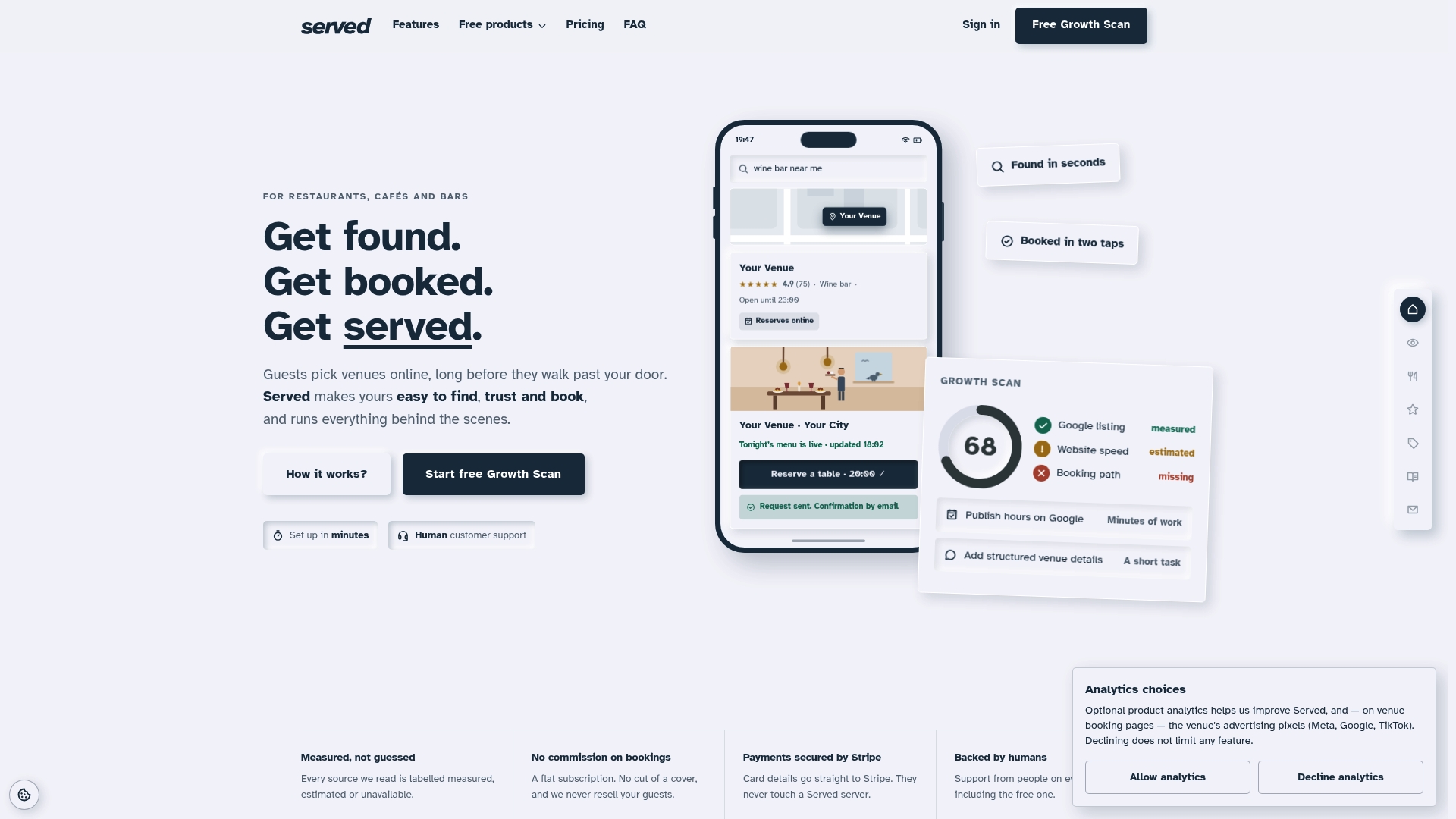
Up-to-date menus only pay off if guests can find you and book. We built our platform around that, with a subscription model designed to help you manage bookings and guest relationships.
- Commission-free bookings on a flat subscription.
- Real-time menu updates, so changes reach guests quickly.
- A Growth Scan that shows how visible your venue is online.
- Onboarding and support to help you get started.
Not sure where you stand? Run our Booking Path Scan to see how guests currently find and book you, or visit our get found page for a free venue page. Our Visibility Brain plan costs 69 € per month on our get booked page, and you can try the free tools first. Start with the scan today and fix what it shows.
FAQ
How fast can I change a menu online?
As fast as you can edit and publish in your menu tool. Change the item, publish, then test the live link or QR code on a phone. If you use a POS, push a sync so all channels match.
How do I mark a dish as sold out online?
Open the item in your menu tool and set it to unavailable, or limit the quantity. Then check the live menu on a phone and let your floor team know. If your POS drives the menu, mark it there too.
How do I update my menu for a seasonal offer?
Build the seasonal dishes in their own category ahead of time, then publish or schedule the switch at a quiet moment. A separate seasonal category keeps it easy to switch off later.
What should I do if my digital menu stops working?
Switch to a printed or saved copy straight away. Keep 2–3 copies ready and make sure staff know where they are.
Sources
- Restaurant Menu Updates: How to Manage Seasonal Offers
- How to Design a Digital Menu That Actually Converts
- Gopos
- Qrstuff